Change password using an STV device
After your first sign in, you can change your password by pressing CTRL + ALT + DEL on your keyboard which brings up the following screen:
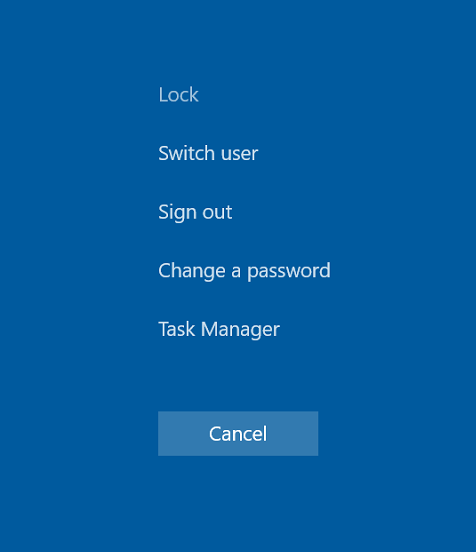
Press on "Change a password" and enter the current password followed by the new password twice
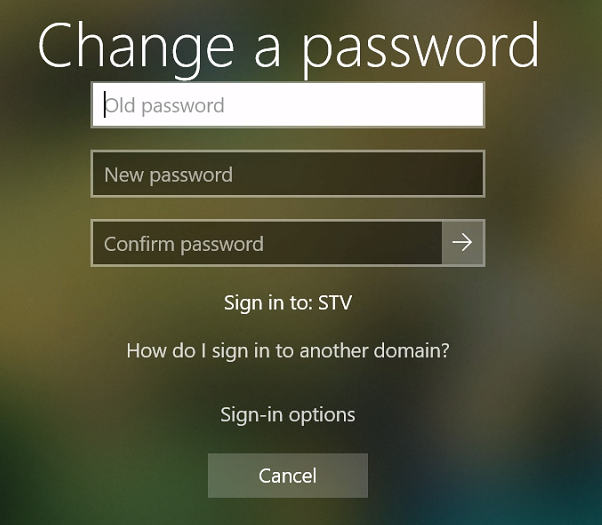
The password policy requires 1 capital, 1 number and a minimum of 10 characters
Changing password without STV device
Go to office.com and press sign in.
Enter your email address and press next.
Then, at the password screen, press on "Forgotten my password":
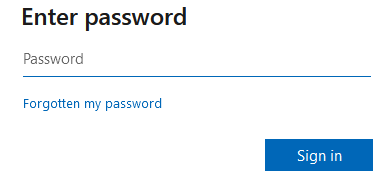
Follow the prompts on the screen and set your new password.
Changing the password from office.com will change your password for signing into an STV device and vice-versa.
Was this article helpful?
That’s Great!
Thank you for your feedback
Sorry! We couldn't be helpful
Thank you for your feedback
Feedback sent
We appreciate your effort and will try to fix the article