How to register your pass
Start off with going over to a printer and tapping your pass on the designated card reader.
Please wait to get your permanent pass before registering the pass with your account.
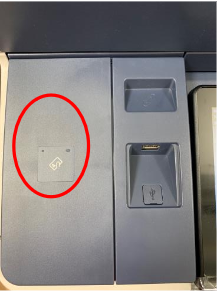
After tapping your pass, you will be prompted to enter your email address. Please enter your stv email in the field.
If after tapping your pass at the printer brings up another persons email address, please contact the service desk at service.desk@stv.tv
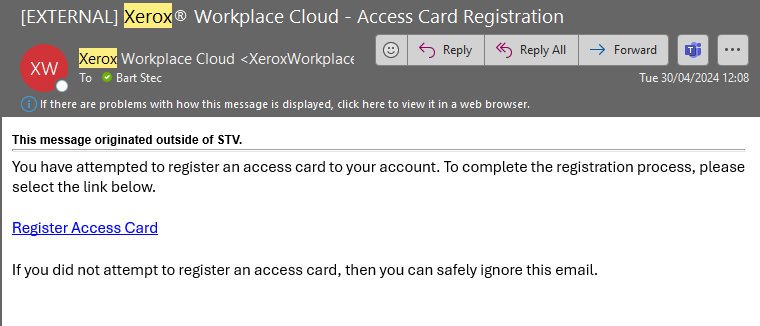
Then, open up your email and wait for instructions to come through to your inbox.
Follow the instructions in the email:
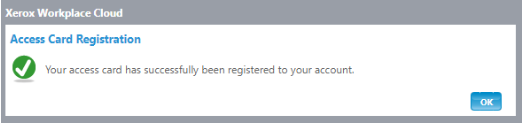
After pressing on the link and accepting the terms and conditions, you should receive a confirmation like the one below:
Adding printers to your laptop
After registering your pass, you need to sign into the Xerox Workspace application found on your laptop, which will automatically add the available printers.
Start with going to the hidden icons section in the bottom right of your screen, and look for the Xerox Workplace Cloud Client application:
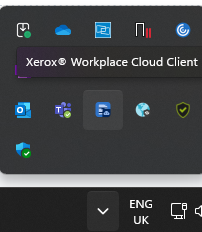
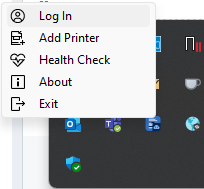
Then, right-click on the app and select log in:
This will bring up a login page where you enter your email address:
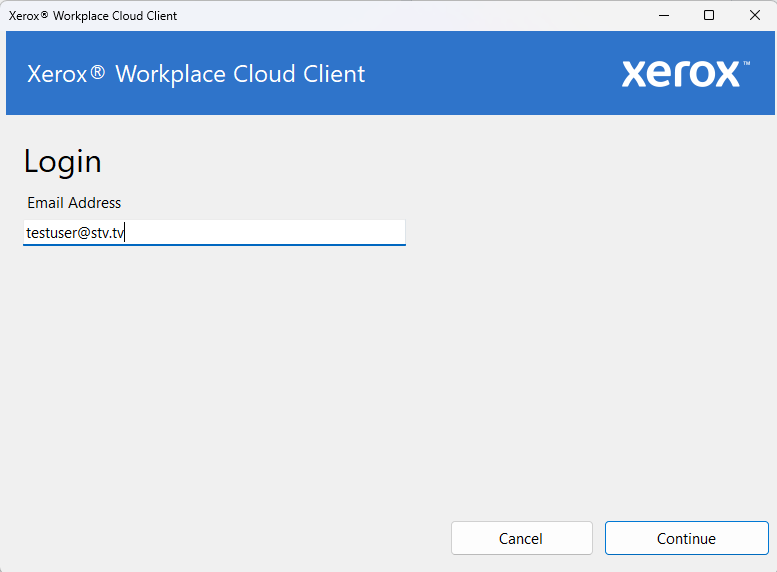
Follow the prompts on the screen and complete the sign in.
After you have signed in, you might see notifications coming up advising you that a new printer has been installed, this will happen a couple of times as all the available printers are added to your device:
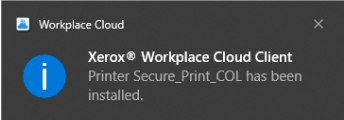
The default printer you want to print to is Secure_Print_BL or Secure_Print_COL, which are black and white or colour printing respectively.
Releasing a print job
Now that the pass is registered and the printer is added to your device, you will need to head over to a printer to start the print job.
Go over to any printer closest to you and tap your pass. This should sign you into the printer.
Next, press on the PrintByXerox button on the printer screen:

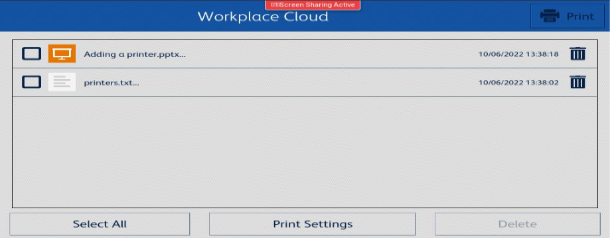
This should bring up your print queue, tick/untick any jobs you want printed, and press on the print button in the top right:
Was this article helpful?
That’s Great!
Thank you for your feedback
Sorry! We couldn't be helpful
Thank you for your feedback
Feedback sent
We appreciate your effort and will try to fix the article