Printing with Papercut on MacOS
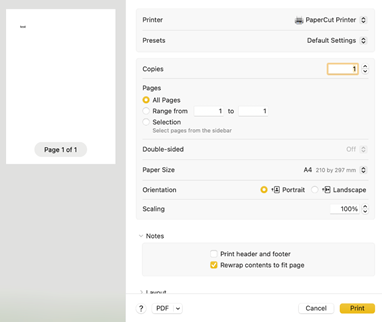
To get the correct print queue, you will first need to print a test print, this will not come out of the printer but will register PaperCut to your account. Choose the Papercut printer and select print (ONLY FOR INITIAL SETUP).
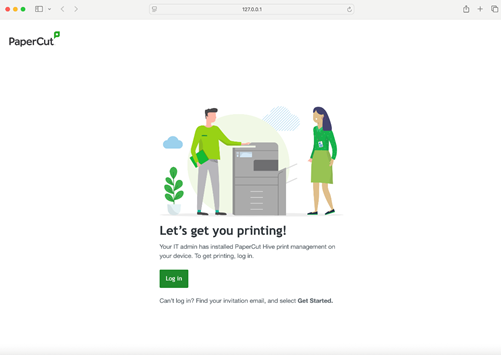
A page will open in Safari to log in and continue with SSO. Press the Log In button.
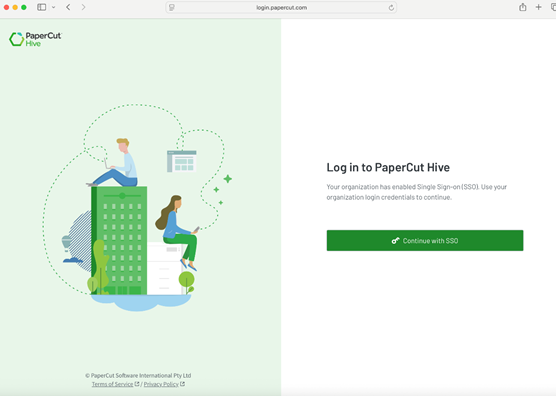
An office 365 sign in page should open, login in with your STV email and password.
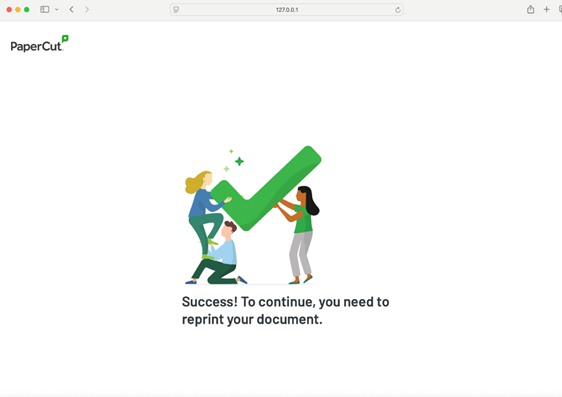
PaperCut should now be registered and should bring in the 2 print queues.
To print, you still print in the normal way that you would in your chosen application. Choose one of the following printers, PaperCut_Printer_BW (for mono prints), PaperCut_Printer_COL (for colour prints).
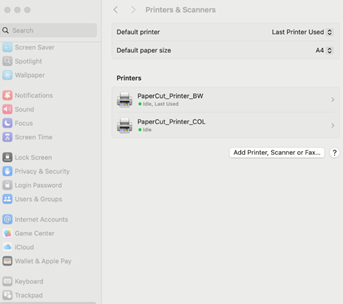
Both printer queues are defaulted to double-sided printing. You can change these settings if you require to do so in printer properties, but with PaperCut, you can also amend these settings at the printer, if you have forgotten to.
At the printer, scan your badge, or enter your access code, which you would have received by email at initial setup. This will log you into the printer to access your print jobs.
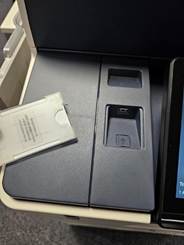
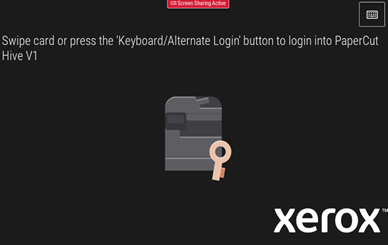
You should be taken directly into the PaperCut application on the printer. If not, then press the PaperCut Hive button.
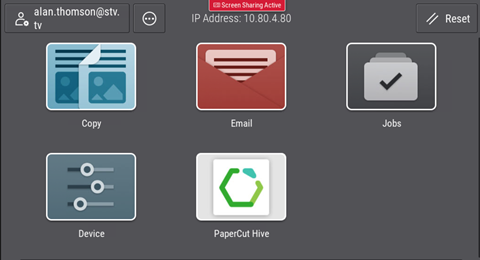
You will see the documents that you have sent to the printer. You have the option to select all docs (if you have printed more than one), or print the required doc. Press the ‘Print Selected’ button to start the print job.
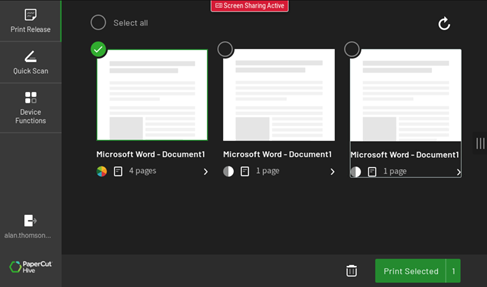
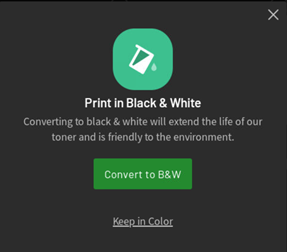
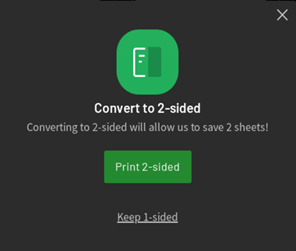
Once the print job is sent, depending on the type of print job, colour or single sided, PaperCut will then give you the option to convert to black & white and double-sided, to try help reduce waste and promote mono printing.
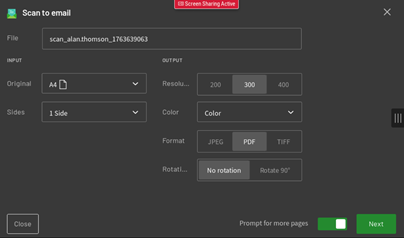
You can also scan direct to your email, and your One Drive by pressing on the appropriate button under the ‘Quick Scan’ button on the left side of the screen.
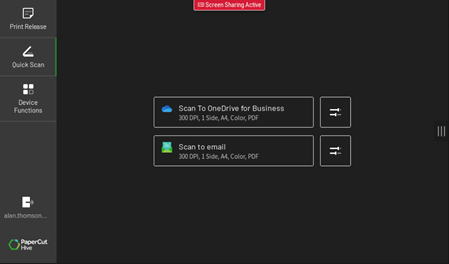
If you press the sliding bars button to the right of the scan options, you will be able to amend settings before sending your document.
To log out, tap your pass again on the card reader, or press your name at the bottom left of the PaperCut application. Automatic timeout has also been set to 15secs if there is no input activity from the user.
Was this article helpful?
That’s Great!
Thank you for your feedback
Sorry! We couldn't be helpful
Thank you for your feedback
Feedback sent
We appreciate your effort and will try to fix the article