 | 1. Download the app from the App Store or the Google Play Store |
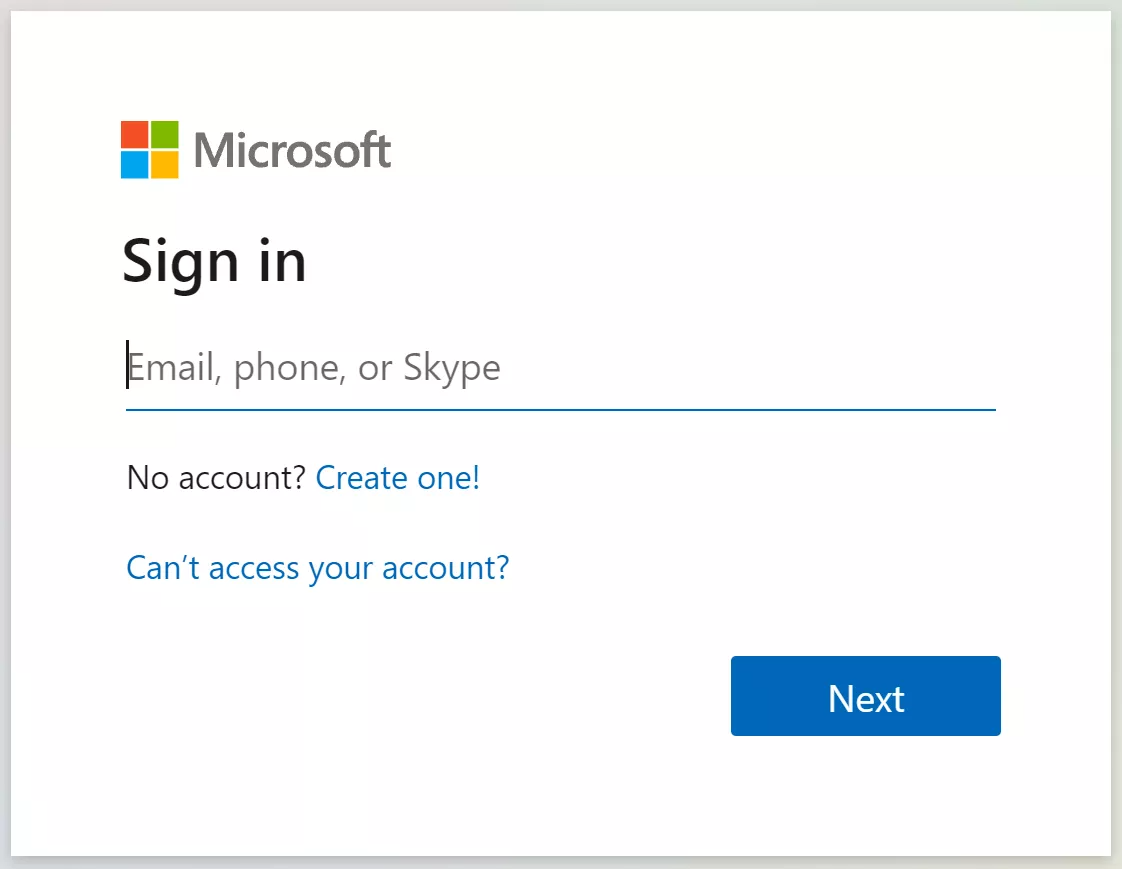 | 2. Log into your Microsoft 365 account online by going to portal.office.com |
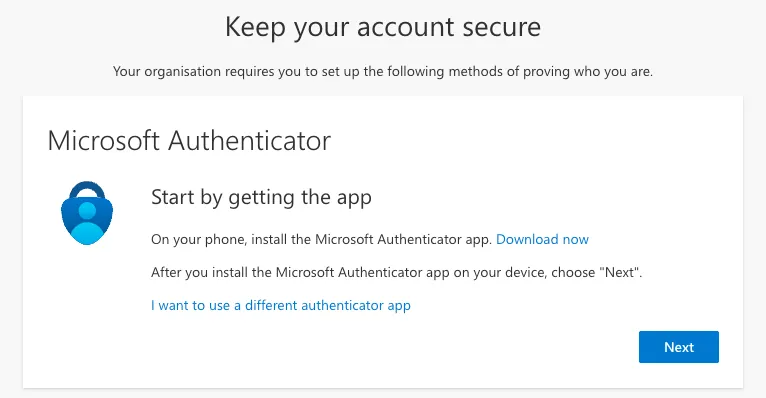 | 3. You will be presented with the following message if this is your first time signing in |
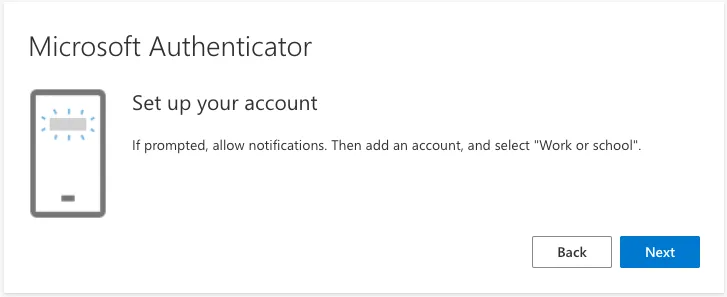 | 5. Click next |
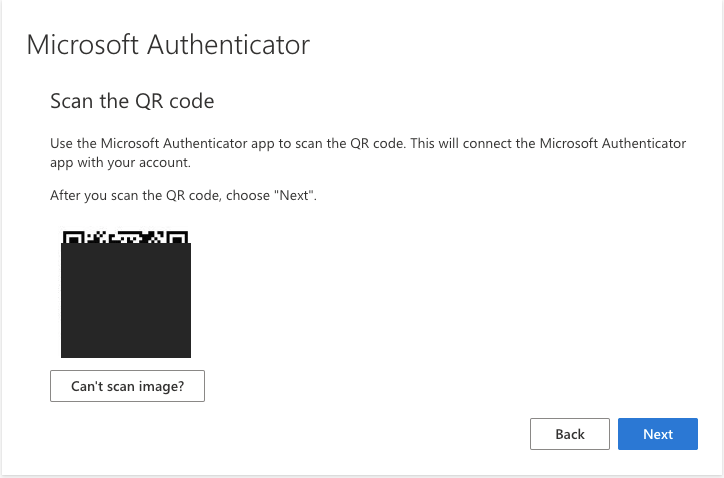 | 6. Keep this QR code up on your screen and go over to your phone |
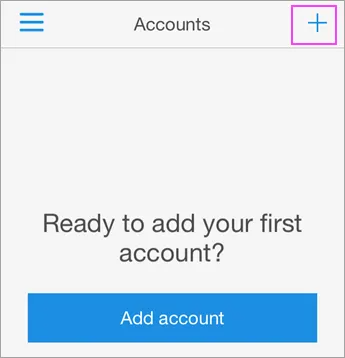 | 7. Make sure the camera is enabled on your phone 8. Open Microsoft Authenticator app on your phone 9. Tap + in the top right corner |
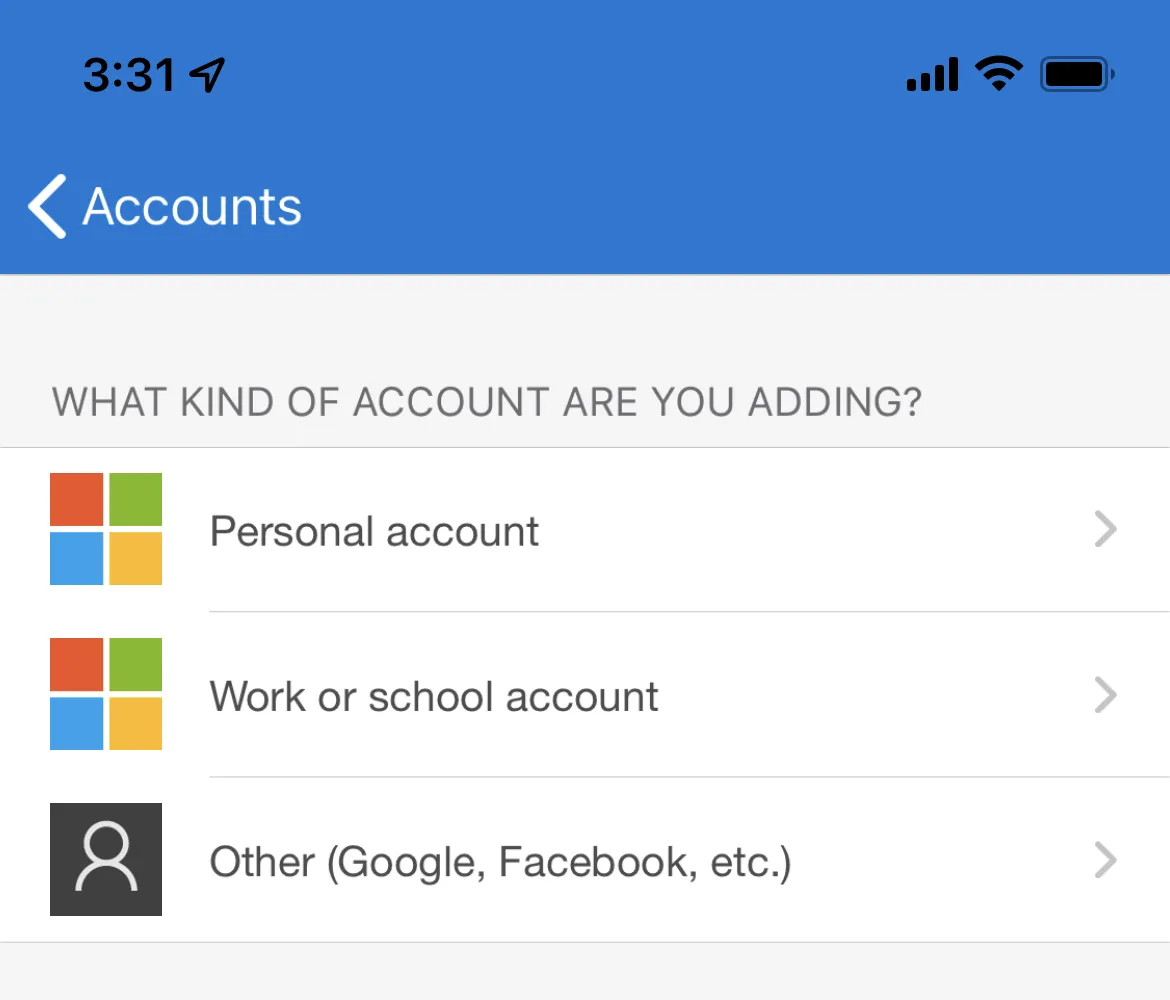 | 10. Select Work of School account 11. The app will prompt you to scan the QR code on your computer, scan the code using your phone's camera |
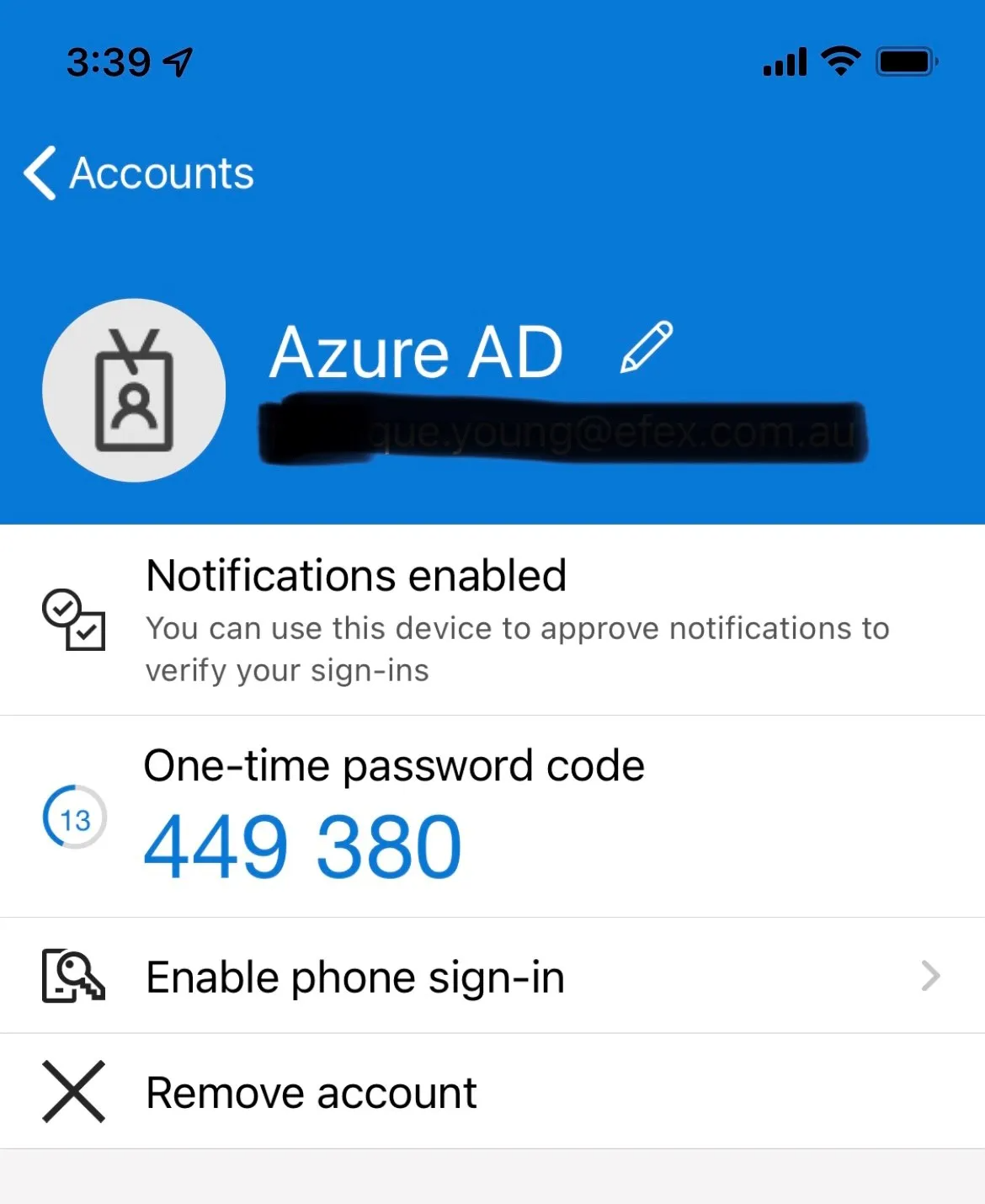 | 12. Once successfully scanned, your account will show up 13. Back on your computer, press next to go to the next screen |
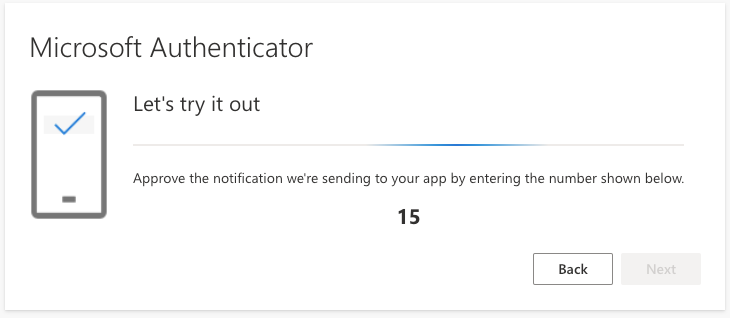 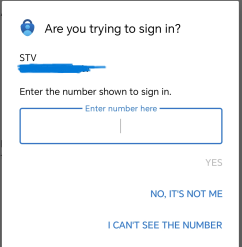 | 14. In order to test it is working correctly, enter in the numbers shown on screen into your Authenticator app prompt |
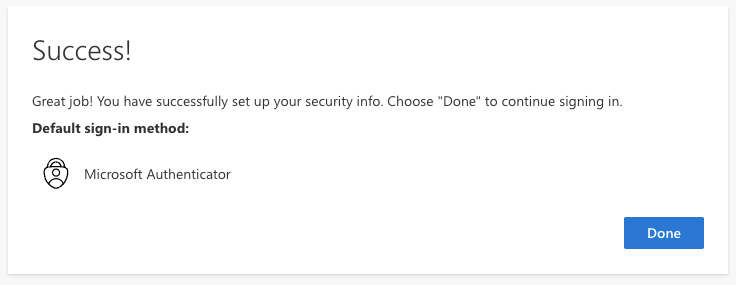 | 15. Once approved, it will show as successful onscreen |
Please go to the following link to a Microsoft Authenticator setup video: How to setup MFA
Was this article helpful?
That’s Great!
Thank you for your feedback
Sorry! We couldn't be helpful
Thank you for your feedback
Feedback sent
We appreciate your effort and will try to fix the article