This step-by-step guide describes how to add an additional mailbox to Outlook 365
** Please note, you will only be able to add a mailbox that you have been given access to - this is usually requested by a Manager **
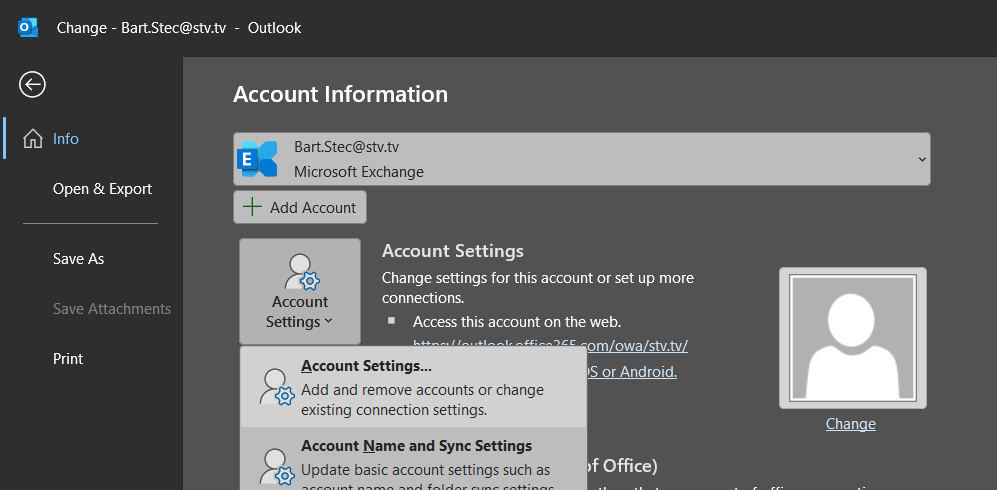
From the main Outlook window, click File then Account Settings > Account Settings...
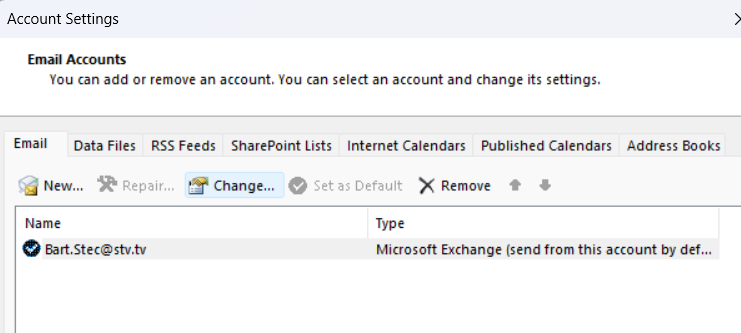
Now, click on the Change... button
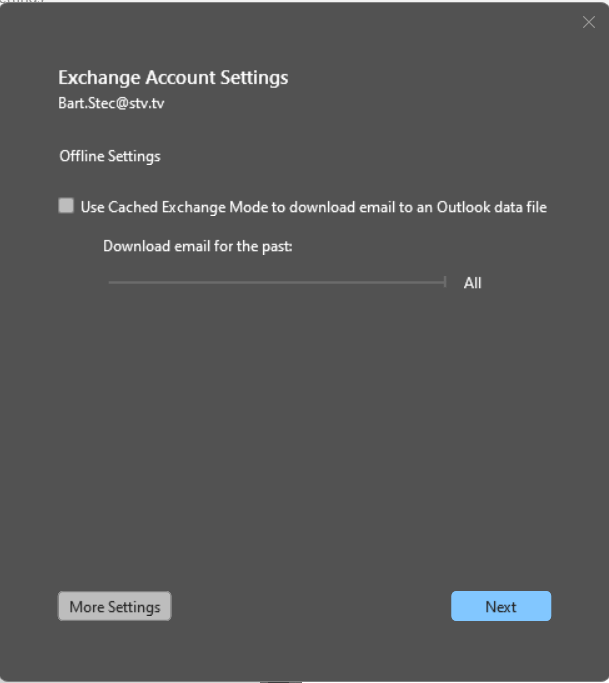
A new window will appear. Press on the More Settings button
A tabbed window will open, click on the Advanced tab, then click the Add button
In the dialog box, please type the name of the mailbox you wish to add - In this example I have used the Service Desk Mailbox
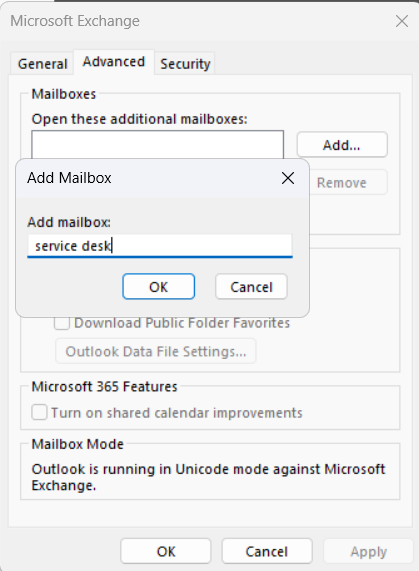
Once done, click OK twice, Next, Finish and Close
You may be prompted to restart Outlook, please do so if required.
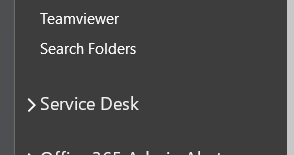
You will now be able to access the newly added mailbox from the Mail Folders section
Video Guide:
If you have any queries regarding this guide, please contact the Service Desk on extension 1111
Was this article helpful?
That’s Great!
Thank you for your feedback
Sorry! We couldn't be helpful
Thank you for your feedback
Feedback sent
We appreciate your effort and will try to fix the article