To access Parallels, you must be a guest within the STV Entra tenant. If you experience any issues logging into Parallels to access PMI, please contact service.desk@stv.tv for assistance.
If you can log into Parallels but encounter issues accessing Octopus PMI or have other Octopus-related questions, please contact your management accountant or accounts payable contact.
Accessing PMI via the Parallels Desktop Client
If your IT is provided by Pitch Partners, they may need to assist with downloading and installing the Parallels client. This link contains the link to download:
https://www.parallels.com/products/ras/download/client/
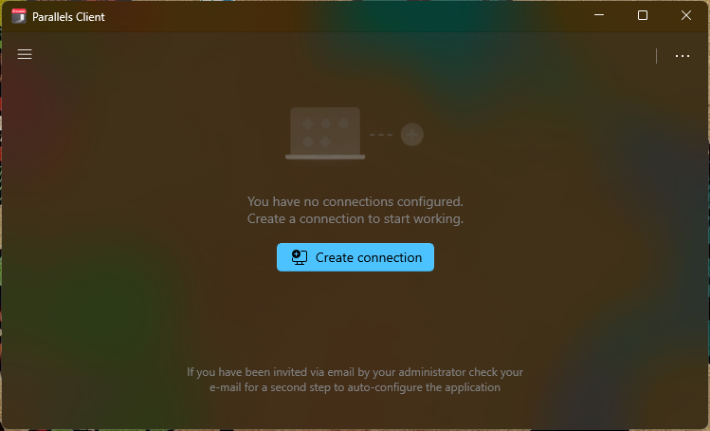
Open Parallels Client and click Create Connection.
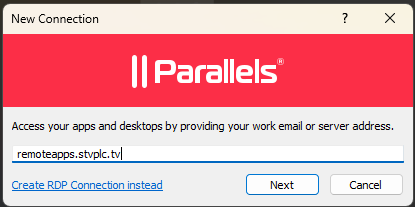
Enter the URL: remoteapps.stvplc.tv (no need for "https://") then click next
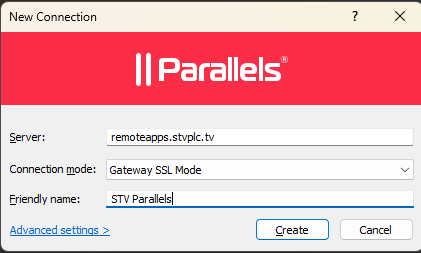
Click Create on the next window.
On the login section, set the authentication type to Web, then select Connect.
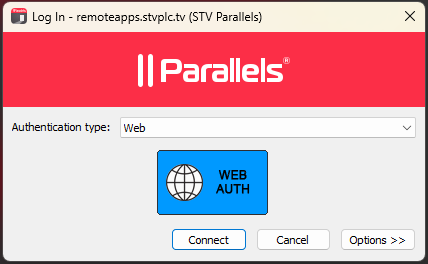
Your browser will open and ask for your Entra/Microsoft credentials.
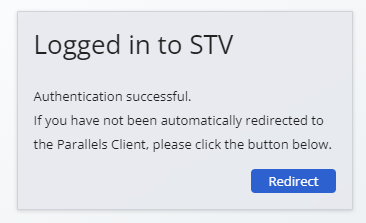
After logging in, you should see the available applications, including Octopus PMI.
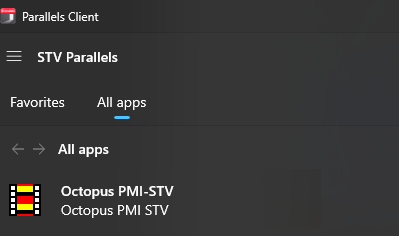
You should then be able to open the Octopus PMI app.
Accessing PMI via the Web browser
Go to remoteapps.stvplc.tv
Login with your Email & password if prompted
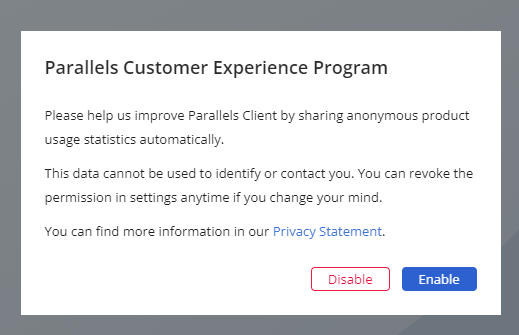
Upon login, click Disable if prompted by the "Customer Experience Program" window.
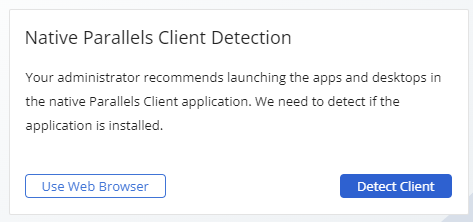
On the Client Detection window, choose Use Web Browser.
Then click Octopus PMI
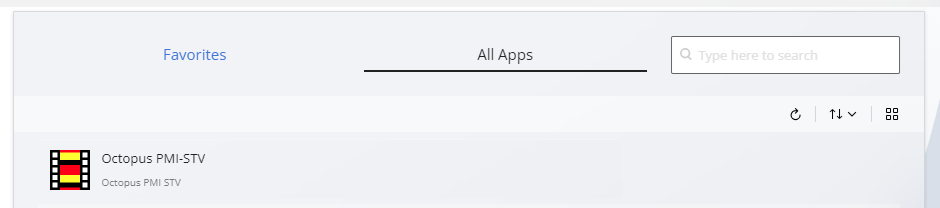
Select Octopus PMI; it may take a few moments to load
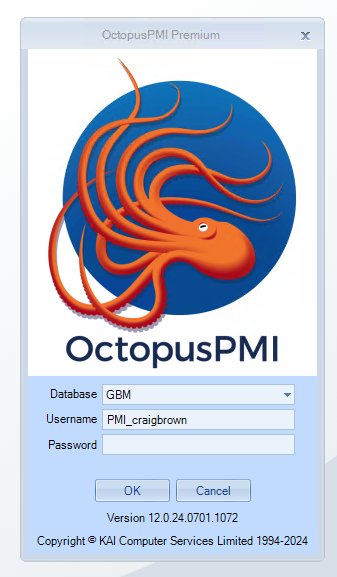
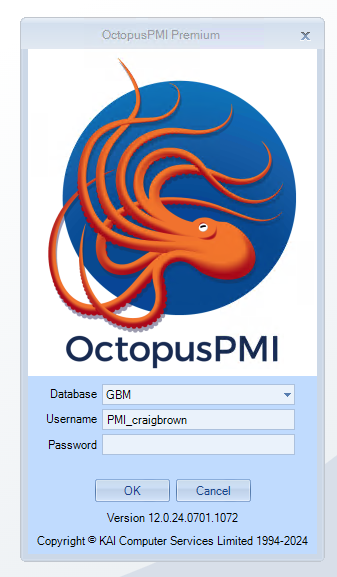
When logging into Octopus for the first time your username may appear as “PMI_yourname”, delete that and enter the username & password provided for login to the PMI application. If you aren’t sure, contact your management accountant or accounts payable contact.
Was this article helpful?
That’s Great!
Thank you for your feedback
Sorry! We couldn't be helpful
Thank you for your feedback
Feedback sent
We appreciate your effort and will try to fix the article