Installing the Softphone app
If you have been provisioned with a phone extension, IT can provide you a headset to be used with the softphone application.
In order to set this up, you will first need to install the BT Cloud Works Phone application from the respective app store.
Mac - STV Self Service | Windows - Company Portal |
And search for the BT Cloud Works Phone app:
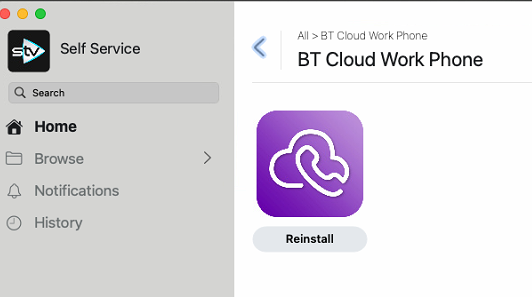
App setup
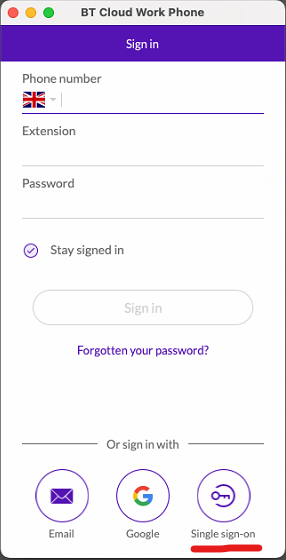
Once the application is installed, open the app and hit "Sign in".
When presented with the sign in screen, hit the "Single sign-on" button
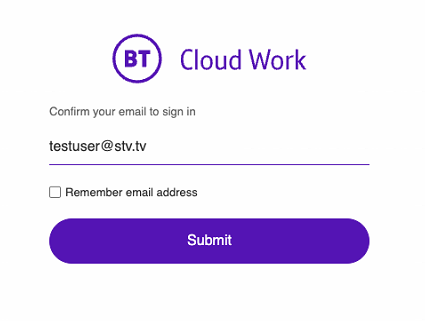
This will open the default browser on your device, and take you to the BT Cloud Work sign in page. Enter your email and hit "Submit":
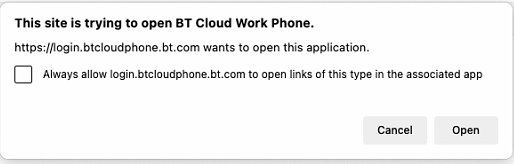
Follow the prompts on the screen to complete sign in, and once complete, hit "open" on the prompt that shows up after sign in:
Close down any notifications that come up and skip any updates that appear on screen.
Read through the Product Tour which will show you where you can find most of the needed information.
After going through the product tour, you will need to register an emergency response location. Please set this to the office where you are based in, read the notice, tick the box confirming you have read the notice and hit confirm.
Setting the emergancy location is necessary as your ability to make outbound calls will stop functioning if this is not set
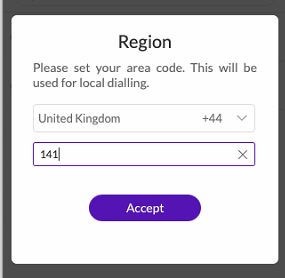
Once you have set the emergancy location, you will need to enter the area code, this will be the area code of your provided phone number without the leading 0. For example, 0141 300 3000 (Glasgow), area code for this number is 141.
Was this article helpful?
That’s Great!
Thank you for your feedback
Sorry! We couldn't be helpful
Thank you for your feedback
Feedback sent
We appreciate your effort and will try to fix the article