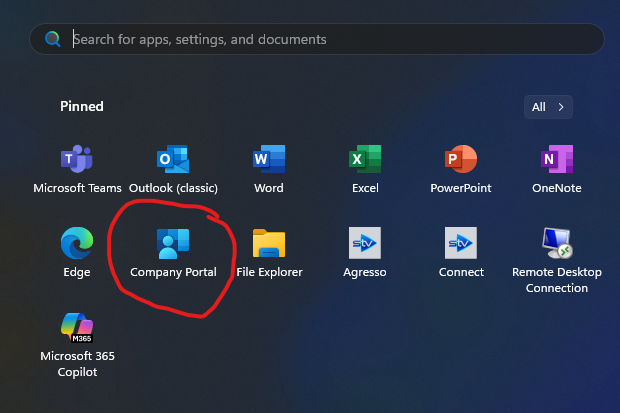
1. Press the start button (Windows button) and click on Company portal (if it is missing from here type it in)
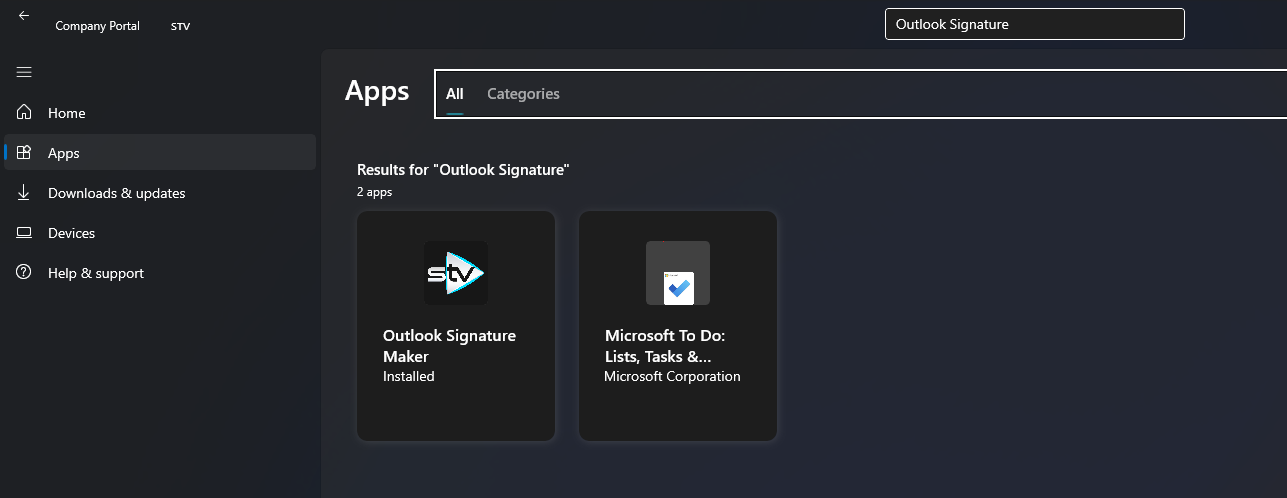
2. Search for "Outlook Signature Maker" and click on the image:
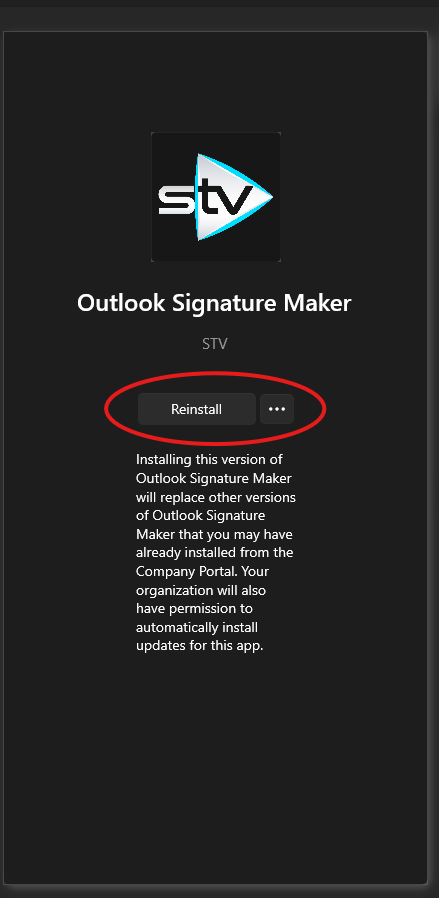
3. Click install:
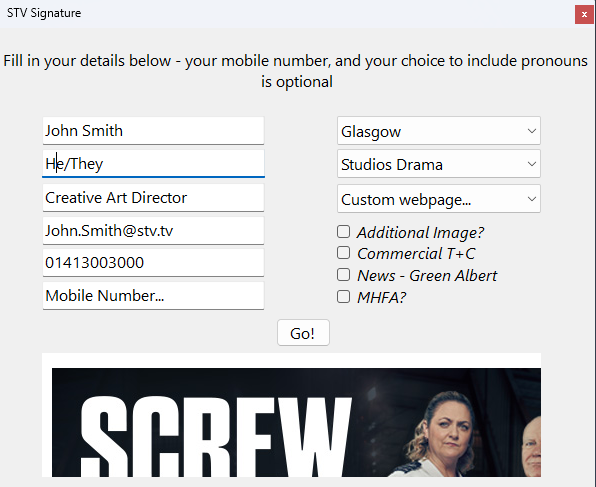
4. Once Installed it will create a shortcut on your desktop call "Create Signature", once you double click to launch this it should look like the following:
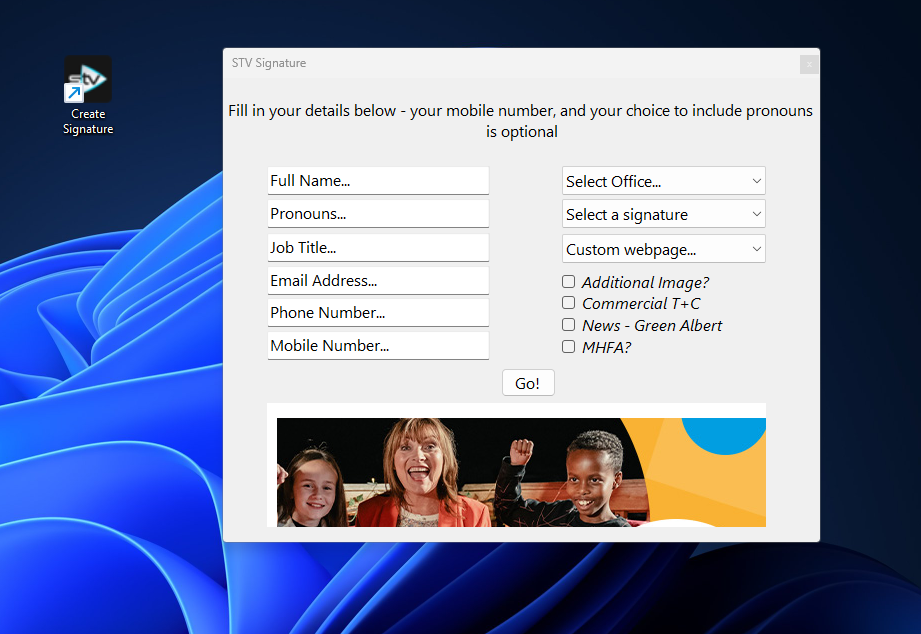
Enter your information here and click go:
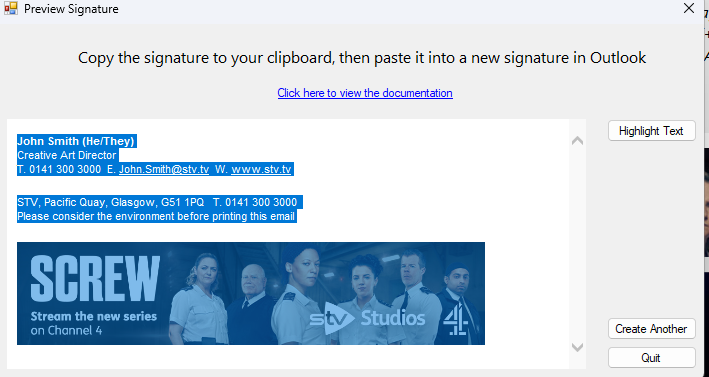
5. Copy your signature that appears:
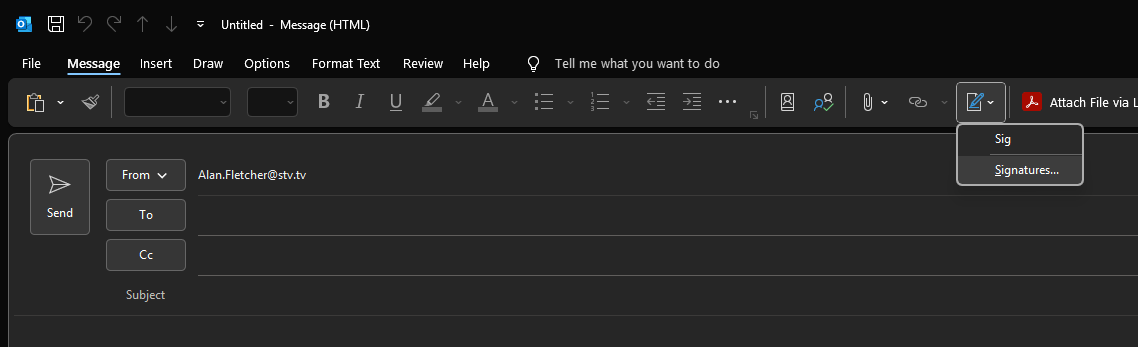
6. Open Outlook, Click new email and select the signatures section:
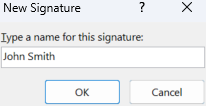
7. Click New and name your signature:
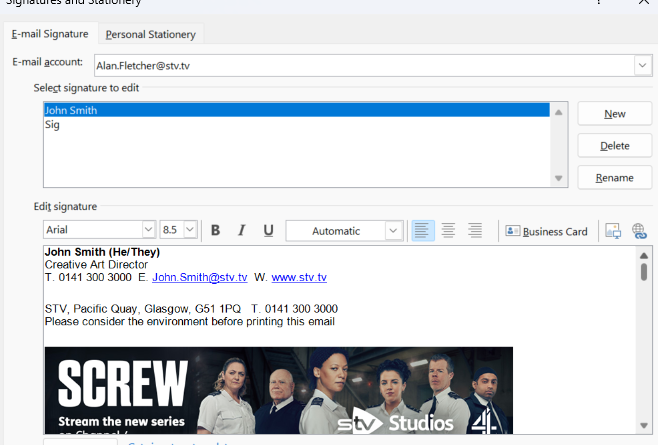
And then paste your signature over so it should look like this:
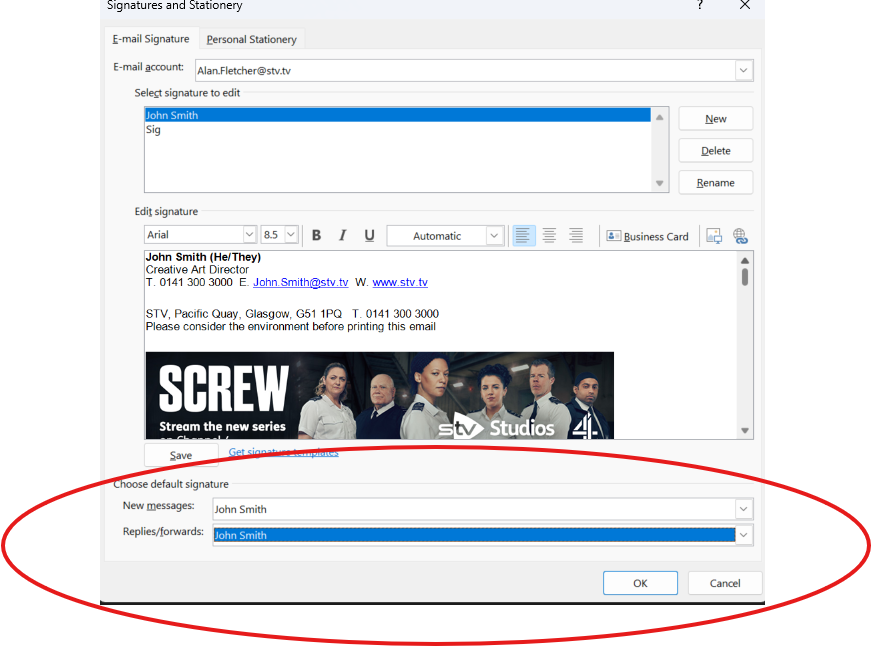
A wee extra tip is if you do not want to have to attach a signature to every email yourself or have a "default" one you like to attach if you look further down you can choose which to default to when you create new emails and also reply/forward emails:
Was this article helpful?
That’s Great!
Thank you for your feedback
Sorry! We couldn't be helpful
Thank you for your feedback
Feedback sent
We appreciate your effort and will try to fix the article